How do I use Epson Software Updater?
Applies To
- Operating Systems: Windows, macOS
Description
Epson Software Updater automatically searches for new software applications, and available updates to your product's firmware, software, or user guides. It's available for download from your product's driver page on the Epson Support website.
Solution
-
Open Epson Software Updater:
- Windows: type Software Updater in the search bar and press Enter, or go to All Programs > Epson Software > EPSON Software Updater.
- macOS: Mac HD > Applications > Epson Software > EPSON Software Updater.
Note: Once downloaded, click Run to install and follow the on-screen instructions — you won't need to download it again for future checks.
-
Select your printer from the drop-down list.
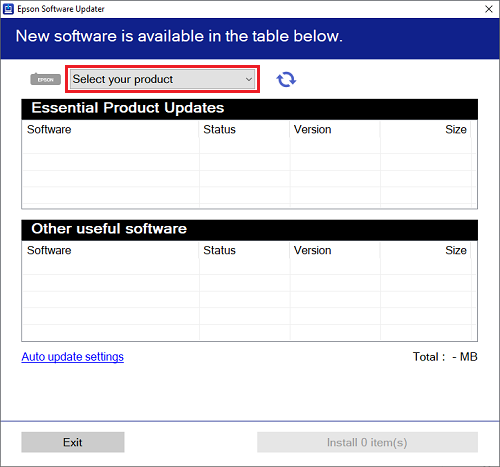
-
Available updates are listed in two groups: Essential Product Updates (recommended, improve product performance) and Other Useful Software (additional functionality). Tick the software you want, click Install, and follow any on-screen instructions.
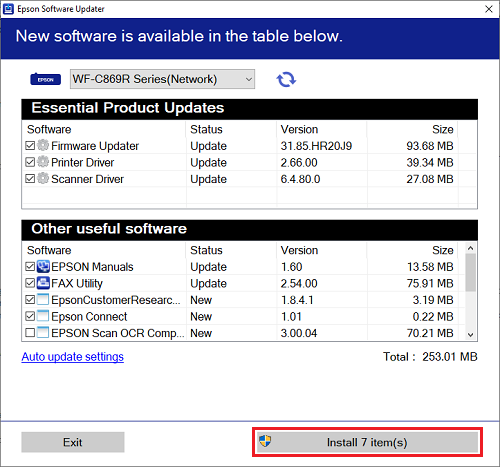
Tip: Hover your mouse over a software name for a brief description of what it does.
-
To check automatically going forward, click Auto Update Settings in the bottom-left corner of the main screen. Choose a check frequency from never up to every two months, then click OK.
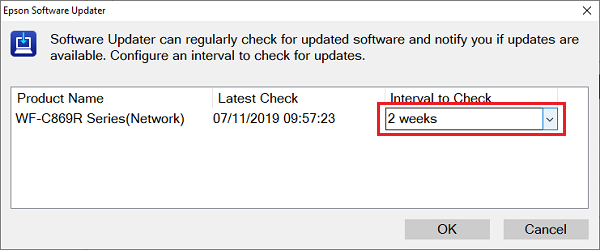
Note: If multiple printers are installed, each can have its own update schedule.