ReadyPrint: How to keep your firmware up to date
ReadyPrint: How to Keep Your Firmware Up to Date
Applies To
Description
To keep the ReadyPrint service performing at its best, follow these steps to install the latest firmware.
Solution
Before You Get Started: You won't be able to print while firmware is updating, and any queued print jobs will be cancelled. Do not turn the printer off unless instructed to during the update process.
Turn on your Epson printer and make sure it's connected to a computer with internet access.
Run the Epson Software Updater tool. If it isn't already installed: go to Epson Support, enter your printer's name, select your language, click Product Setup, then Epson Software Updater.
Epson Software Updater checks for available software or firmware updates. If new firmware is found, it appears in the Essential Product Updates window.
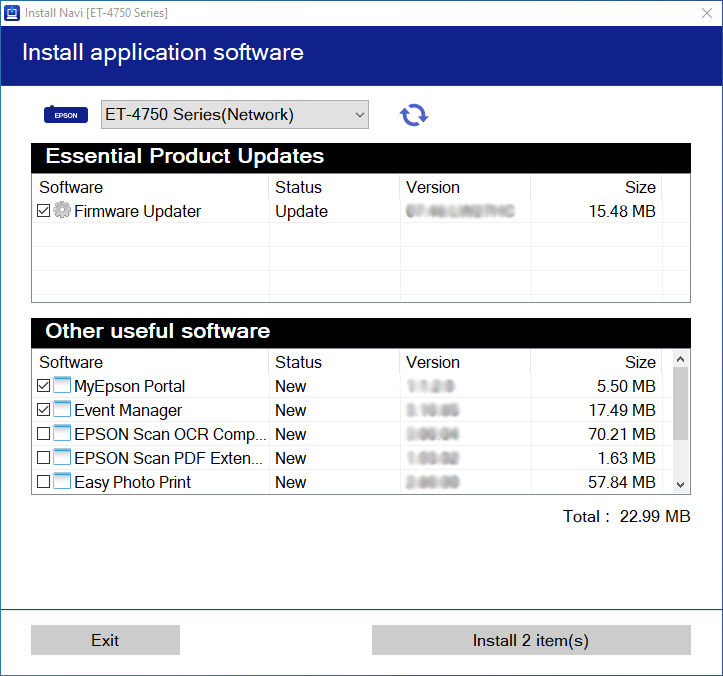
Install the new firmware and follow the on-screen instructions — this can take up to 15 minutes.
The update may trigger an alert from your antivirus or firewall software — click "Unblock" or "Allow" to let it continue.
Keeping Firmware Up to Date Going Forward
Connect your printer to the internet regularly so it continues receiving the latest firmware updates automatically.
Troubleshooting
If an update fails, the printer may enter recovery mode. To retry, connect the printer to your computer with a USB cable — a network connection won't work for this recovery step.
Tip: For more information and additional support, check your printer's instruction guide or visit epson.eu/readyprint.