Can I print using black ink only when my colour cartridge(s) are empty?
Applies To
- Hardware: Selected Stylus, Stylus Office, Expression Home, Expression Premium, Expression Photo, WorkForce, and WorkForce Pro printers — see "Checking Compatibility" below. Not available on older Epson products, as it depends on specific printer hardware.
- Related Articles:
Description
Black Print Mode lets you continue printing using only black ink, as a temporary emergency measure, if a colour cartridge is expended and no replacement is available. It's only available under specific settings, and only for a limited time.
Note: Available on macOS / Mac OS X 10.4 or later.
Solution
Supported Settings
Black Print Mode requires: Plain paper, Black/Grayscale colour setting, and Borders layout (not Borderless — plain paper doesn't support borderless printing; this uses the driver's default 3mm margin).
How Long Is Black Print Mode Available For?
This varies depending on usage conditions, images printed, print settings, and frequency of use. The limit exists to protect the print head from heavy maintenance — within this period, colour printing can resume normally once the expended cartridge is replaced. If you exceed the printable duration without replacing the cartridge, the printer shows "Replace Cartridge" and stops printing — replace it as soon as possible. Leaving an inkjet printer unmaintained for a long period risks severe nozzle clogs that you may not be able to fix yourself.
Windows
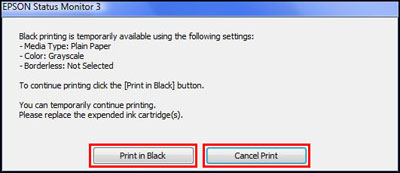
When a colour cartridge expends, you're prompted with a message offering Print in Black (to continue in Black Print Mode, once supported settings are applied) or Cancel Print (to replace the cartridge instead). If ink expends mid-job, a similar prompt appears — select Replace Cartridge to pause and replace it, or Stop to cancel the job and switch to supported Black Print Mode settings before resending. If unsupported settings are selected, you'll be prompted to cancel and correct them. See KA-01555 for help changing driver settings.
macOS / Mac OS X
If a colour cartridge expends before a job is sent, a message appears in the print queue — delete the job (see KA-01088) and resend it with supported settings. Before doing so, enable Black Print Mode: open Applications > Epson Software > Epson Printer Utility 4 > Driver Settings and tick Permit temporary black printing. Once enabled, select the remaining supported settings in the driver as normal.
Standalone (Printer Control Panel)
When colour ink expends, a message appears on the LCD — press OK to proceed. If ink expends mid-job, the job is cancelled and must be resent using supported settings. Select 2 Remind me later and press OK to continue with Black Print Mode instead of replacing the cartridge immediately. To apply supported settings: press Menu, select Copy > Paper and Copy Settings, set Layout to With Border and Paper Type to Plain Paper, exit the menu, then press the Black & White copy button.
Note: A colour fax received while in Black Print Mode is automatically converted to black and white — there's no option to store it and print in colour later.
Checking Compatibility
Black Print Mode is supported on a range of Stylus Office, Stylus, Expression Home, Expression Premium, Expression Photo, WorkForce, and WorkForce Pro models from roughly the 2010s product generation — support and whether it extends to standalone Black & White copying (not just PC/Mac printing) varies by exact model. Check your specific model's support page on the Epson website to confirm compatibility.
How does Black Print Mode work?
Windows
When a colour ink cartridge is expended, it is possible to continue printing colour documents using the Black Print Mode option for a limited period. When the colour ink cartridge(s) have expended you will be presented with a software message advising that the colour ink is expended and that it is possible to continue printing using Black Print Mode.
If the colour ink is expended before sending the print job to print, you will see the following message. Ensure that the supported settings are applied in the printer driver and click Print in Black to continue printing using Black Print Mode or Cancel Print to replace the expended cartridge.
If the colour ink is expended during the current print job, the following on-screen message appears.
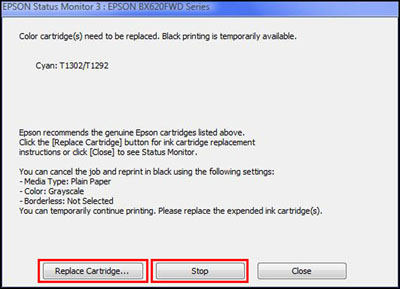
To continue printing in colour, choose the Replace Cartridge option. Alternatively, to print the current print job using Black Print Mode, click Stop to stop the current print job and select the supported Black Print Mode settings from the printer driver to successfully print using Black Print Mode.
If you select settings not supported by Black Print Mode in the printer driver, the following message is displayed. Click Cancel Print and select the correct supported settings for Black Print Mode.
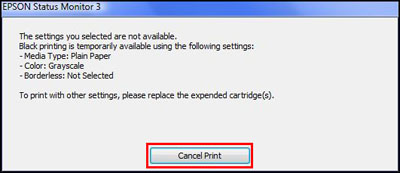
For more help on how to change your driver settings, click here.
macOS / Mac OS X
When a colour ink cartridge is expended, it is possible to continue printing colour documents using the Black Print Mode option for a limited period. If the colour ink cartridge is expended before the print job is sent to the printer. The following message is displayed in the print queue:
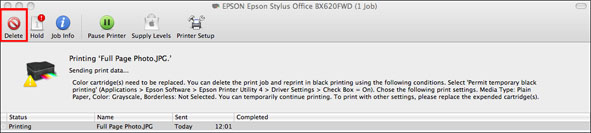
You will need to delete the current print job and re-send using supported Black Print Mode settings.
To select supported Black Print Mode settings, you must first enable the option for Black Print Mode. To do this, open \Applications\Epson Software\Epson Printer Utility 4\Driver Settings and click into the check box beside Permit temporary black printing.
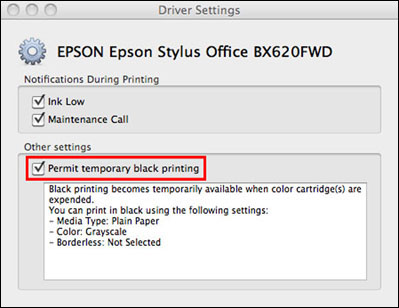
Once enabled, you may continue to select the remaining supported settings in the printer driver.
Standalone
When a colour ink cartridge is expended, it is possible to continue printing colour documents using the Black Print Mode option for a limited period. The following message appears on the printer's LCD panel when the colour ink has expended. Press OK to proceed.
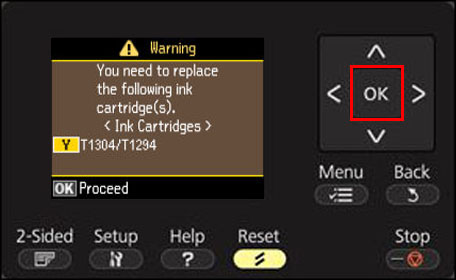
Press OK again to proceed. If the colour ink is expended during the current print job, the current print job will be cancelled and must be resent using the supported Black Print Mode settings.
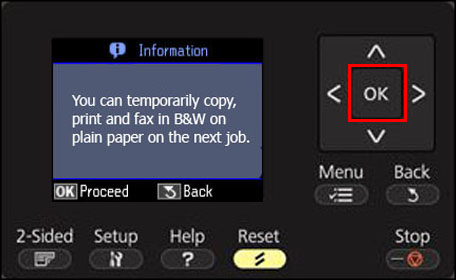
To print in colour, replace the expended cartridge(s) or to continue printing using the Black Print Mode, select option 2 Remind me later and press OK.
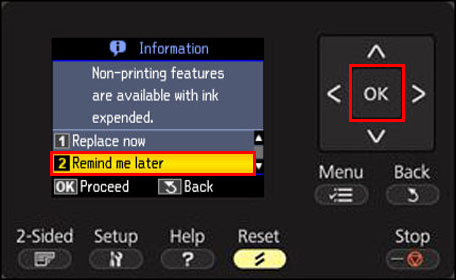
To apply the supported Black Print Mode settings, press the Menu button, select Copy, then Paper and Copy Settings. Make the supported settings here (Layout: With Border, Paper Type: Plain Paper), exit the menu and then press the Black & White copy button to copy your document again.
Note: If a colour fax is received while in Black Print Mode, it is automatically converted into black and white. There is not an option to store the fax and print it at a later date.