How do I turn Automatic Head Cleaning on or off?
Applies To
- Product models: Stylus Photo PX700W / PX710W, Stylus Photo PX800FW / PX810FW
-
Related Articles:
- FAQ KA-01531 (when to run a manual print head cleaning)
Description
Automatic Head Maintenance is a self-check process for the print head that runs when the printer is first powered on, or after a period of inactivity. If the print head nozzles are clogged, the printer automatically and efficiently cleans them — this keeps the ink system lubricated to help prevent clogging and maintain print quality. This process uses ink from the cartridges.
With this feature turned on, you normally don't need to run manual nozzle checks or head cleaning yourself. Running the Head Clean utility manually uses a variable amount of ink from every colour — the exact amount depends on how many cleans you run.
Depending on how often you use your printer, you may want to turn Automatic Head Maintenance on or off — check your model's utility software or printer settings menu, since the exact toggle location varies by product.
Solution:
For instructions on how to turn the Automatic Head Maintenance feature on or off, select your product below:
Stylus Photo PX700W / PX710W
-
Make sure the printer is powered on.
-
Press the Home button on the printer's control panel.
-
Use the
 Left or
  Right arrow buttons to navigate to Setup and press OK.
-
Use the
Left or Right arrow buttons to navigate to Maintenance and press OK.
-
Use the
 Up and
  Down arrow buttons to highlight Automatic Head Maintenance and press OK.
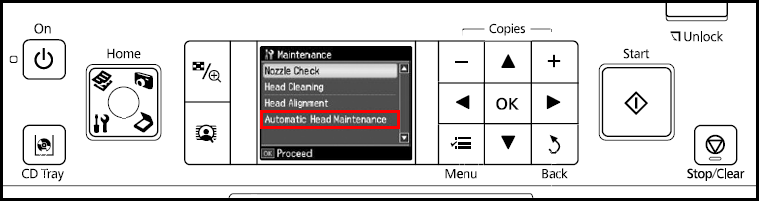
-
Here you can turn the Automatic Head Maintenance feature On or Off.
Stylus Photo PX800FW / PX810FW
-
Make sure the printer is powered on.
-
If the Home button is illuminated, press it once.
-
Select Setup on the screen.
-
In the Setup menu, select Maintenance.
-
Press either the
Left or Right arrow.
-
Select Automatic Head Maintenance.
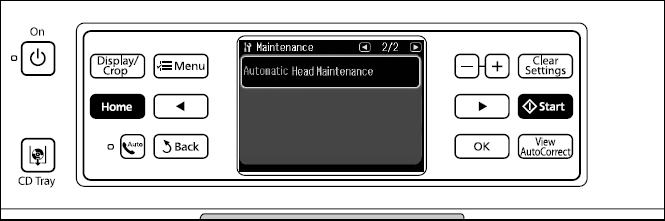
-
Here you can turn the Automatic Head Maintenance feature On or Off.