My product is stuck in Recovery Mode
Applies To
Operating Systems: Windows only. There is no macOS version of the Firmware Recovery Tool. If you only have access to a Mac, you'll need a Windows PC to complete this process — for example, a work or borrowed machine, or Windows running via Boot Camp or virtualization software (USB device passthrough for virtualized Windows isn't guaranteed to work reliably for this tool).
Hardware: Any Epson printer whose control panel displays a Recovery Mode error.
Description
The Recovery Mode error can occur if a firmware update is interrupted — for example, the printer being powered off (accidentally or intentionally), cables being disconnected, or the installation being cancelled before it completes. Follow the steps below to restart the firmware installation and recover your printer.
Note: The firmware update process can only be completed using a USB cable — this is not possible over Wi-Fi.
Solution
Note: The Firmware Recovery Tool is Windows-only — there is no macOS version. You'll need a Windows PC to complete these steps.
- Visit the Epson Support website, select your product model, and open the Downloads tab.
-
Open the Firmware Recovery Tool download listed under the Firmware section and click View.
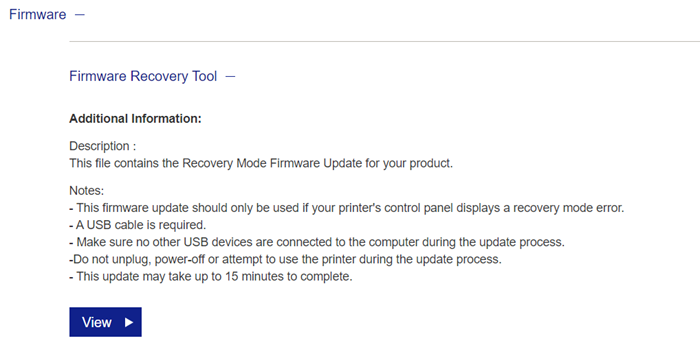
Note: If there is no Firmware Recovery Tool download listed for your product, contact Epson Support.
- You'll be redirected to a download page. Accept the Terms and Conditions and download the tool.
-
Connect your printer to your computer via a USB cable.
Note: Disconnect any other USB devices from the computer before starting the update, to avoid interference.
-
Run the Firmware Recovery Tool and wait at least 15 minutes for the installation to fully complete.
Warning: Do not remove any cables, power off the printer, or attempt to use the printer at any point during the update — including if it appears to have completed before the full 15 minutes have passed. Interrupting the process at this stage can permanently damage the printer.
If your printer is still showing Recovery Mode after completing these steps, contact Epson Support for further assistance.