When to clean your print head
Applies To
Description
This article explains when you should run a Print Head Cleaning and how to check whether your printer needs one. Print Head Cleaning helps resolve issues such as missing or faint colours (including yellow, cyan, magenta, or black), banding, faint print, or incorrect colour mixing.
Solution
1. Before You Begin
Before running any cleaning cycle:
- Ensure all ink levels are sufficient. Low ink can prevent cleaning from working properly.
- Make sure the printer has no error lights or warning messages on the control panel.
- Avoid performing multiple cleanings in a short period; excessive cleaning can consume ink unnecessarily.
2. Print a Nozzle Check
A Nozzle Check prints a test pattern showing whether all colours are printing correctly.
For the exact steps to print a Nozzle Check — including the menu path for Windows 11, Windows 10, and macOS — see KA-02050: How to Fix Print Quality Issues on Epson EcoTank and Expression Printers.
3. Compare Your Nozzle Check Results
Match your printed pattern to the closest example below to identify the likely cause and next step.
| Example | Pattern | Likely Cause | Recommended Action |
|---|---|---|---|
A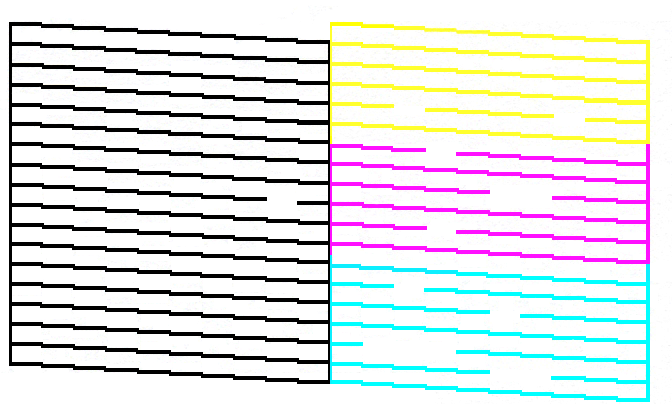
|
Missing lines across all colours | General clogging across multiple colour channels | Run Print Head Cleaning (Step 4) |
B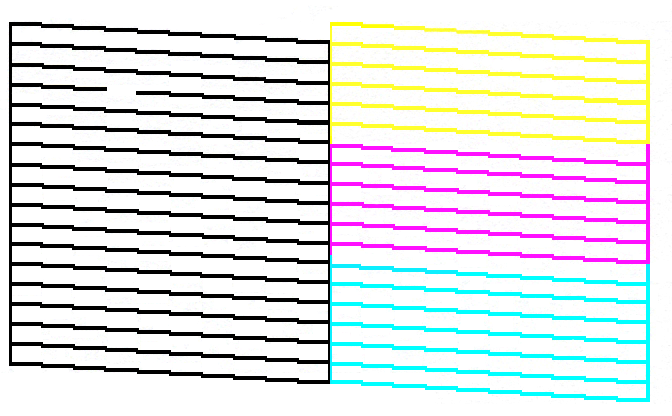
|
Lines missing in one colour only (image shows black; the same pattern can occur with yellow, cyan, or magenta) | Clogging isolated to that colour's ink channel | Run Print Head Cleaning (Step 4) |
C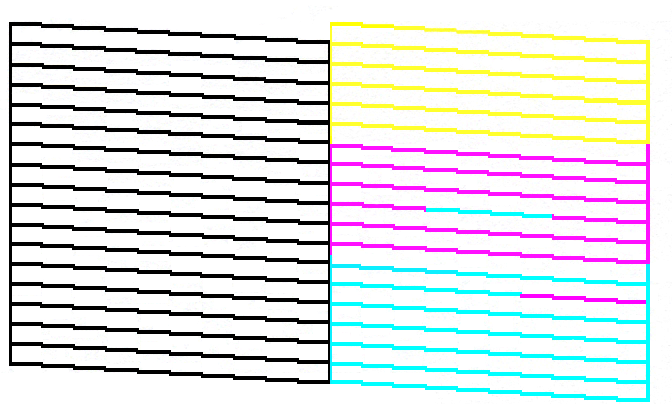
|
Colours mixed or printed incorrectly | Misfiring nozzles or severe clogging | Run Print Head Cleaning (Step 4); if unresolved after repeated cleans, see Power Cleaning (Step 5) |
Note: Exact pattern appearance varies depending on printer model.
4. Complete Print Head Cleaning
If the Nozzle Check shows missing segments, gaps, or mixed colours, run a Print Head Cleaning. For the exact steps, see KA-02050: How to Fix Print Quality Issues on Epson EcoTank and Expression Printers.
5. Power Cleaning (EcoTank, Expression, and WorkForce Printers)
If normal Print Head Cleaning does not resolve the issue:
- Some models may offer a Power Cleaning (or Power Ink Flushing) option.
- This uses more ink and should only be done after multiple standard cleans.
For details, see KA-02055: When to Perform a Power Clean.
6. When NOT to Clean the Print Head
Avoid running cleaning cycles when:
- Ink levels are low.
- The printer displays hardware errors.
- You've already cleaned repeatedly in a short time — wait at least 12 hours between attempts.