Windows 11: My printer driver did not automatically install. How do I install the driver?
Applies To
Solution
-
Connect your printer:
- Wi-Fi or Ethernet: connect your printer and computer to the same network, then continue to the next step.
- USB: when you connect the printer to your computer, the simple driver should install automatically. If it does, you're done — if not, continue to the next step.
- Select Start > Settings.
-
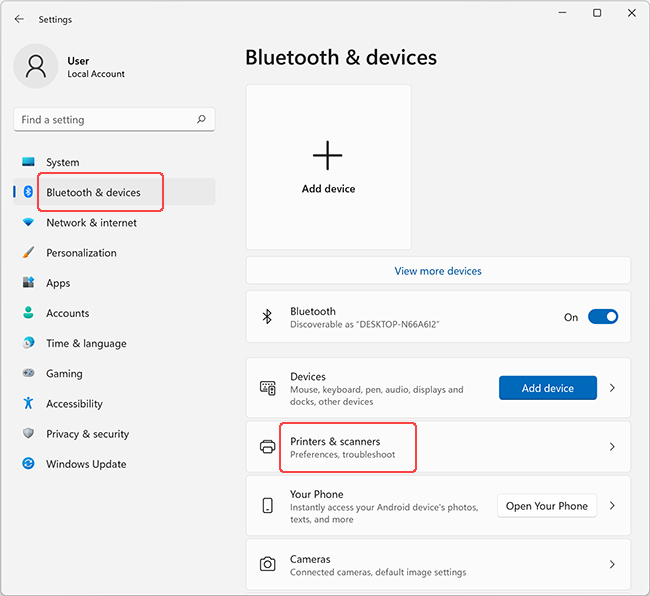
Select Bluetooth & devices > Printers & scanners.
-
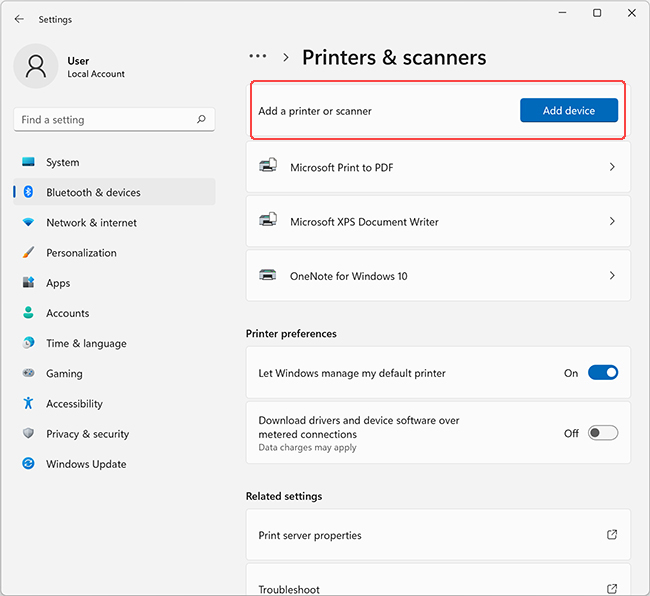
Select Add Device next to the "Add a printer or scanner" prompt.
-
Select Add Device next to your printer's name.
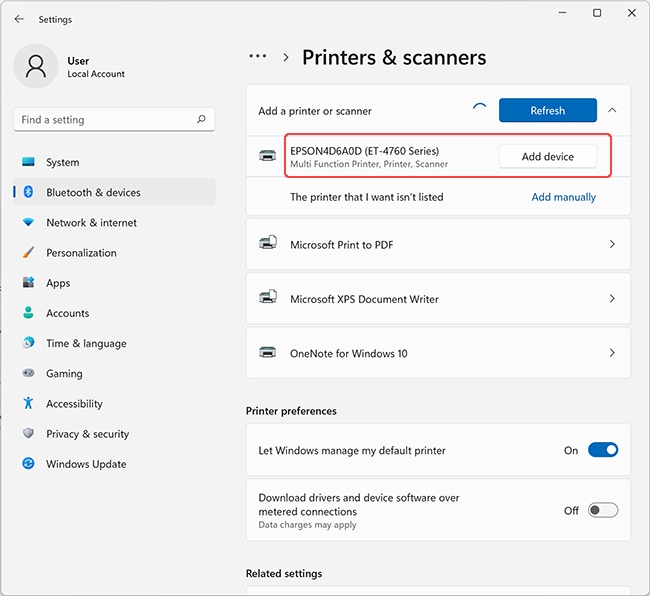
Once installation completes, your printer is ready to print.