Issues installing Epson printer Drivers, since updating Windows 11
Applies To
- Operating Systems: Windows 11 (24H2 or later)
- Epson Printers: Epson EcoTank, Expression Series, WorkForce Series, Laser printers
- Software: Epson Printer Driver, PCL Driver / PostScript Driver, Universal Print Driver, Epson Edge Print P1 model information file
- Related Articles: KA-01732 (the opposite scenario — no Epson driver exists for your product at all, and you want to use Windows' built-in driver deliberately rather than disable it).
Symptom
After running Windows Update and installing a printer driver on Windows 11 24H2 or later, the following issues may occur when using a USB connection:
- The printer driver setup program does not complete.
- The Web Installer fails to detect the printer.
- Epson Setup Manager installs the AirPrint/Mopria print driver only.
- EPSON Universal Print Driver version upgrade fails.
- The setup program does not complete if an AirPrint/Mopria print queue already exists.
- The AirPrint/Mopria printer driver is always installed when using Add Printer.
Description
Microsoft has introduced a feature called Windows Ready Print, enabled by default on supported systems. This feature prioritises the Microsoft IPP Class Printer Driver over manufacturer drivers, such as Epson's own. As part of Microsoft's roadmap, this is becoming standard, with third-party printer drivers being deprioritised from July 2026 onward.
Note: Epson recommends using the full Epson-supplied driver rather than the generic Windows Ready Print driver, to ensure all of your printer's features are available. The generic driver only supports basic printing — settings such as paper type, print quality mode, borderless printing, and colour management options are not available. It also relies on the printer's own onboard processor to convert print jobs, rather than your computer, which is significantly more powerful — with the full Epson driver, more of the image processing is handled by your computer, generally giving better print quality and colour accuracy. Utilities such as nozzle check, head cleaning, and ink level monitoring also require the full driver.
Solution
Turn off Windows Ready Print using the following steps:
- Open Settings from the Start button, then click Bluetooth & Devices > Printers & Scanners.
-
In the printer preferences, turn off Default install printers using Windows Ready Print.

- Install the printer driver.
Important: It's recommended to keep the Windows Ready Print setting off even after installing the printer driver.
If you already ran the printer driver installer before turning off the Windows Ready Print setting:
-
Click the installed driver in Printers & Scanners and click Remove to delete it — this removes the AirPrint/Mopria printer driver that was created.
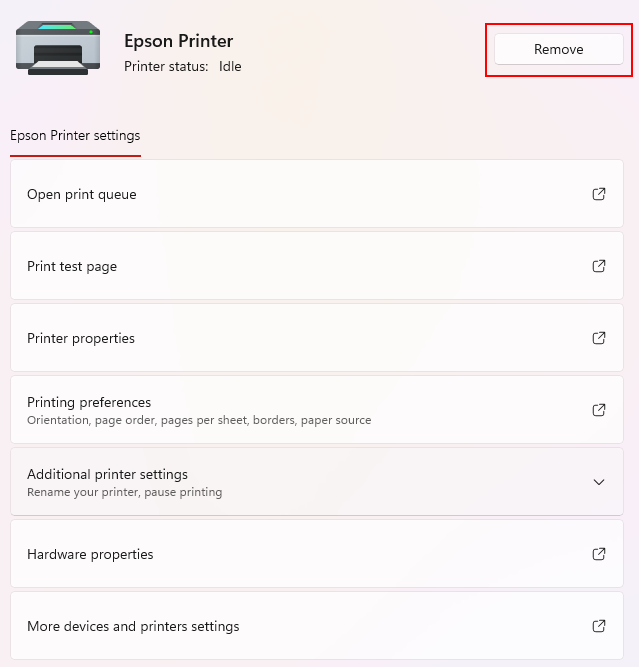
- Install the printer driver via your normal method.