A Windows 11 driver is not available for my printer or all-in-one on my product's support page. How do I use my product with Windows 11?
Applies To
- Operating Systems: Windows 11
- Related Articles:
Description
If your product doesn't have a dedicated Windows 11 driver published on its support page, you can still use it via Windows' own built-in driver — officially called Windows Ready Print. It installs automatically and doesn't require anything from the Epson website.
Solution
- Turn on your Windows 11 computer and make sure it's connected to the internet.
- Connect your product to the same network as your computer, or connect it directly with a USB cable. Windows 11 will automatically install the built-in driver for your product.
- Select Bluetooth & devices > Printers & scanners.
Verifying the Driver Installed Correctly
-
Select
 >
>  Settings.
 -
Select Bluetooth & devices > Printers & scanners. An icon for your printer or all-in-one should appear.
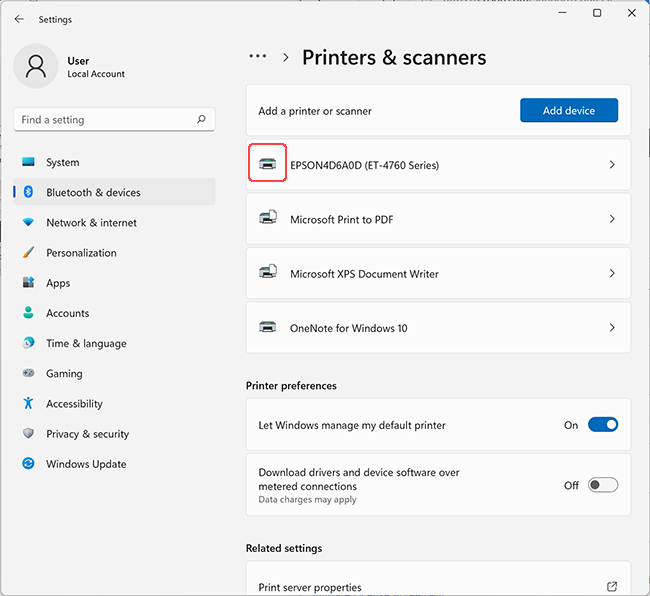
Note: If Windows 11 does not install the drivers for your product, see KA-01733: Windows 11: My Printer Driver Did Not Automatically Install. How Do I Install the Driver? for help.